

Bound for Audiobookshelf & BookOrbit
Your audiobooks, right on your wrist.
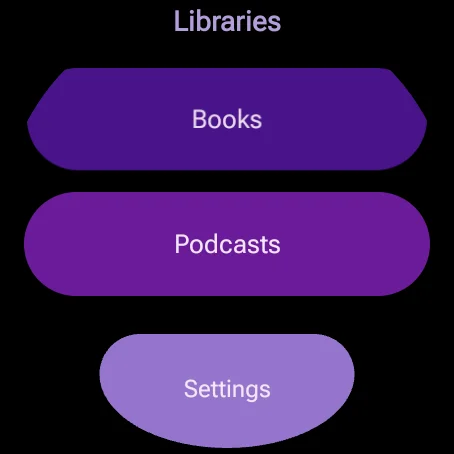
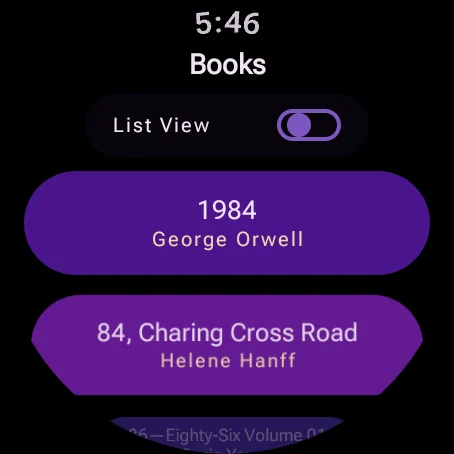
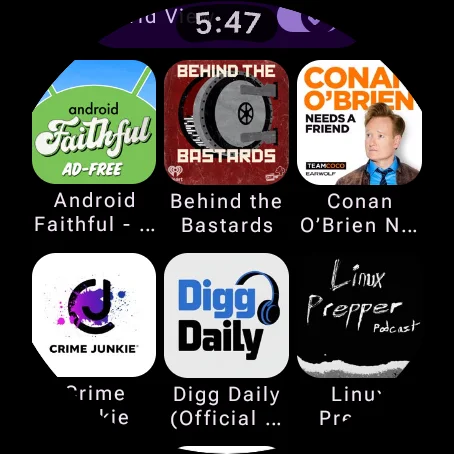
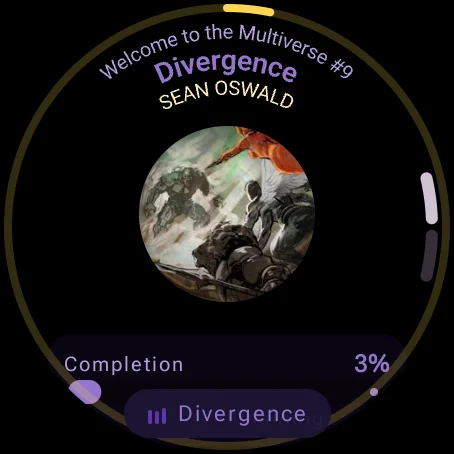
Bound plays audiobooks, podcasts and ebooks from your own Audiobookshelf or BookOrbit server. Listen on your phone, in the car, or on a Wear OS watch that streams on its own, with no phone in your pocket.
What it does
Leave the phone. Keep the story.
Standalone on Wear OS
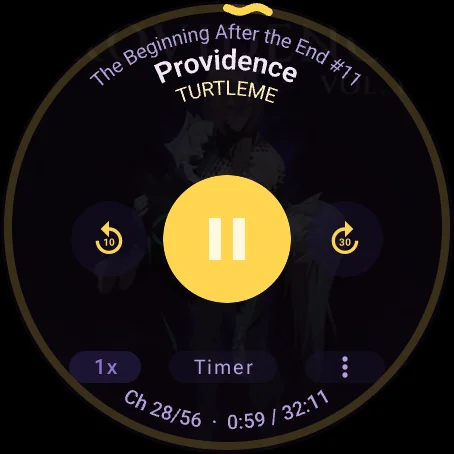
Stream over Wi-Fi or LTE straight from your server. Progress, speed and finished books sync back to Audiobookshelf as you listen.
Offline downloads
Save books and podcast episodes to the watch or phone for runs, flights and dead zones. Wi-Fi only by default, to save battery and data.
Tiles & complications
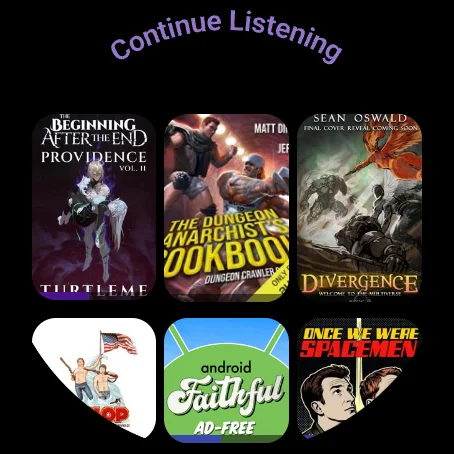
A Continue Listening tile, plus watch-face complications for now playing, next chapter and download status.
Phone, watch and car
Use the phone as a remote, hand off between phone and watch, and keep listening in Android Auto or from the home-screen widget.
Read, too
An EPUB and PDF reader on the phone, and a speed reader on the watch that flashes one word at a time, up to 1,000 words a minute.
Sign in your way
Type or paste your server address, or use single sign-on (OpenID Connect) with a secure prompt on your phone.
Bound AI optional
A listening companion that knows the story so far.
An optional subscription with a 7-day free trial. Nothing is sent to Bound's server unless you subscribe, and you can switch it off any time.
Voice commands
Control playback by voice on your phone, your watch and in the car.
"Previously on…"
Recaps of what you've already heard when you come back to a book.
Smarter sleep & picks
A sleep timer that stops at a natural break, and suggestions for what to listen to next.
Help
Frequently asked questions
Still stuck? Use Report a problem in Bound's Help & Feedback, or email [email protected].
How do I connect Bound to my Audiobookshelf server?
When you open Bound for the first time, it asks for your Audiobookshelf server address (for example https://your-server.com).
Type the address, or copy it on your phone and tap Paste URL in the app to load it from the watch clipboard.
Once the server connects, enter your username and password, or tap Sign in with SSO if your server has single sign-on set up.
How do I change volume, speed or the sleep timer in the player?
Turn the watch's crown to change volume: up for louder, down for quieter.
Tap the speed button (for example 1.0x) to cycle through speeds up to 2.0x.
Tap the timer button to cycle through sleep timers: 5m, 15m, 30m, 1h or End of chapter.
How does the speed reader on the watch work?
The speed reader uses Rapid Serial Visual Presentation (RSVP): it shows a book one word at a time in the same spot, so your eyes don't have to move across lines.
Each word is lined up on its Optimal Recognition Point, the letter your eye naturally lands on, which Bound highlights in orange-red at the center of the screen.
- Play or pause: tap anywhere on the screen.
- Speed (words per minute): turn the crown, or tap + and - at the bottom.
- Exit: double-tap anywhere on the screen.
Why are my downloads stuck on "Waiting for Wi-Fi"?
By default Bound downloads only on Wi-Fi, to save battery and mobile data.
To download over LTE or any connection, go to Settings › Downloads & Network and turn off Downloads Wi-Fi Only.
On the Downloads screen, tap a download to cancel or retry it, and long-press a finished download to delete it.
How do I add Bound's tile and complications?
Tile: swipe left or right from your watch face, long-press, scroll to the end, tap Add tile and pick Bound.
Complications: long-press your watch face, tap Customize, choose a complication slot, then pick one of Bound's: Now Playing (a progress ring), Next Up (the next chapter or track), Download Status or Library (a quick launcher).
How do I set up single sign-on (OpenID Connect) on my server for Bound?
If your Audiobookshelf server uses single sign-on (OIDC), the server admin needs to do three things:
- In your identity provider (Authentik, Authelia, Keycloak and so on), add the Audiobookshelf mobile redirect to the app's allowed redirect URIs:
https://<your-server>/auth/openid/mobile-redirect - In Audiobookshelf, sign in as an admin, open Settings › Authentication, check that OpenID Connect is set up, and add Bound's watch redirect to Allowed Mobile Redirect URIs:
https://wear.googleapis.com/3p_auth/com.rodmonster.bound
Separate multiple URIs with commas. The phone app uses the standardaudiobookshelf://oauth, the same as the official Audiobookshelf app. - Use HTTPS. Sign-in on the watch needs a secure connection, so the server must be served over HTTPS, and any reverse proxy must pass the
X-Forwarded-Proto: httpsheader.
Your library stays on your server
Your library, downloads, listening history and sign-in stay on your devices and your own server. Bound sends crash reports and usage analytics, and you can turn both off in Settings. Bound AI sends only the text each feature needs, and only if you subscribe.